Split PDF
Separate a PDF into smaller files, or extract only the pages you need.
How to Split PDF Files in 3 Steps


What Is a PDF Splitter and When Should You Use One?
A PDF splitter divides one PDF document into two or more separate files, or isolates selected pages into a new file. The process is also called separating a PDF, using a PDF page extractor, or running a PDF page cutter. The page content does not change. Only the way the document is grouped changes.
Splitting is useful in many everyday situations:
-
✔
Email limits. Most mail providers cap attachment size around 20 to 25 MB. Splitting a large PDF into sections keeps each file within the limit.
-
✔
Sharing only what is relevant. Send one section of a report or one signed page of an agreement instead of the full document, which also limits how much information you expose.
-
✔
Upload requirements. Government portals, job applications, and learning platforms often set page or size caps per file.
-
✔
Document management. Separate a scanned batch into individual records so each can be named, stored, and found on its own.
-
✔
Reuse. Extract a single chart, form, or chapter to place in a presentation or another PDF.
Split PDF Online and Keep Control of Every Page
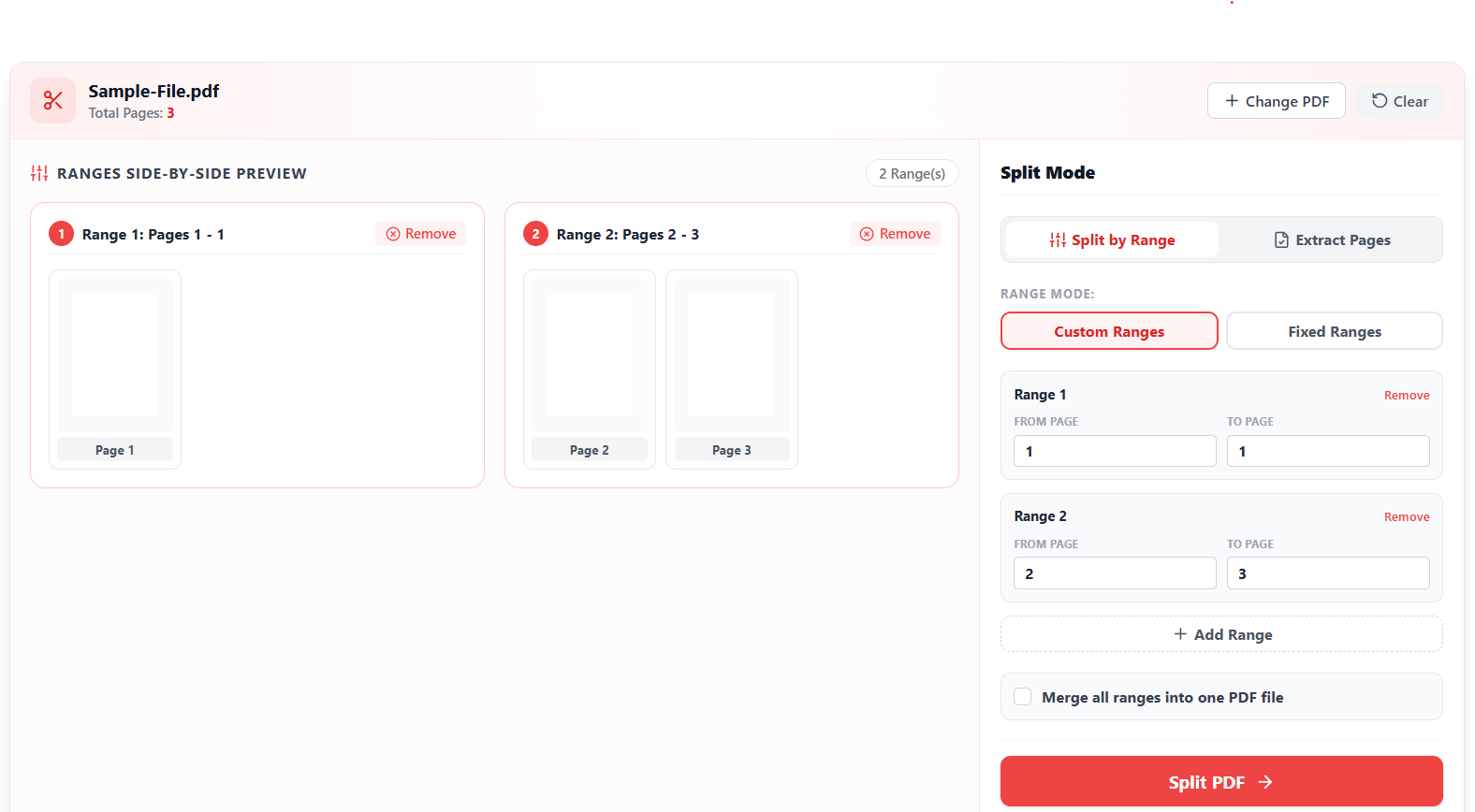
Split by Page Range
Enter the start and end page for each section. A 60 page report can become three files, such as pages 1 to 20, 21 to 40, and 41 to 60. Each range becomes its own PDF.
Extract Pages from PDF
Select only the pages you want and save them as a new document. This works well for pulling one contract clause, one invoice, or one chapter out of a longer file without touching the original.
Separate Every Page Into Its Own File
You can convert a multi-page PDF into individual single-page PDFs. Scanned batches, bank statements, and combined forms are easier to file and share when each page stands alone.
Page Thumbnail Preview
Every page appears as a thumbnail before you split. You can verify the order and content so the right pages end up in the right file.
Original Quality Stays Intact
Our PDF Splitter divides the document without re-rendering it. Fonts, images, links, and layout remain the same in each output file, and the source PDF is never modified.
Works in Any Browser
The PDF splitter runs on Windows, macOS, Linux, iOS, and Android. No software or plugin is required.
Split vs. Extract vs. Delete: Understanding the Difference
These three actions are closely related and often confused.
| Action | What It Does | Best Used When |
|---|---|---|
| Split PDF | Divides the document into several files by range, by page, or by size | You need multiple smaller documents |
| Extract pages | Saves selected pages as a new PDF | You need only specific pages |
| Delete pages | Removes pages from the same document | You want to keep one cleaned up file |
Splitting and extracting leave your original file unchanged. Deleting pages produces a shortened version of the same document.
⭐ Why Split Tasks Go Wrong and How This Tool Handles Them
| ⚠️ Common Problem | ✅ How This Tool Handles It |
| 🚫 Wrong pages selected | 🔓 Page thumbnails let you check each selection before processing |
| 📄 Reduced quality after splitting | 💎 Content is separated, not recompressed, so output matches the source |
| 🐌 Forced account creation | ⚡ No registration is needed to split a file |
| 🗄️ Watermarks on output | 🛡️ Downloaded files contain no added marks |
| 😕 Confusing split options | 🎯 Range, selected pages, and all pages are presented as clear separate modes |
Tips for Cleaner PDF Splits
💡 Check page numbers against the viewer.
A PDF may show printed page numbers that differ from its actual page positions, such as a cover that is not counted. Use the thumbnail position as your reference.
💡 Name files after their content.
Rename each output with a clear label such as "Invoice March" so files stay easy to find.
💡 Unlock protected files first.
A PDF with an owner password restriction on editing must be unlocked before it can be divided.
💡 Keep the original.
Store the source file until you have confirmed that every split file opens correctly.
Frequently Asked Questions
Upload the file, choose the option that separates all pages, and download the results. Each page is saved as its own PDF, and you can download them together in a ZIP file.
Yes. Select the pages you want, for example pages 3, 7, and 12, and save them as one new PDF. The original document stays unchanged.
Yes. Enter a start and end page for each section, and the tool creates one file for every range. You can add as many ranges as the document needs.
No. Splitting separates existing pages without converting or recompressing them. Text, images, fonts, and links stay as they were.
A PDF that requires a password to open must be unlocked first. Documents that only restrict editing or printing may also need to be unlocked before splitting.
Your files are used only to complete the split and are removed after processing. For documents with highly sensitive content, it is good practice to review the privacy policy of any online tool before uploading.
Very large files can take longer to process. If a document fails to upload, split it in stages or reduce its size first.
Yes. The splitter works in the browser on iPhone, iPad, and Android devices, as well as on desktop systems.
Splitting breaks a document into several files. Extracting takes chosen pages and saves them as one new file. Both keep the original document intact.